Key points
- Both load the same Stremzi account into a player
- Xtream Codes is usually easier and loads the guide automatically
- M3U is the fallback for players without Xtream support
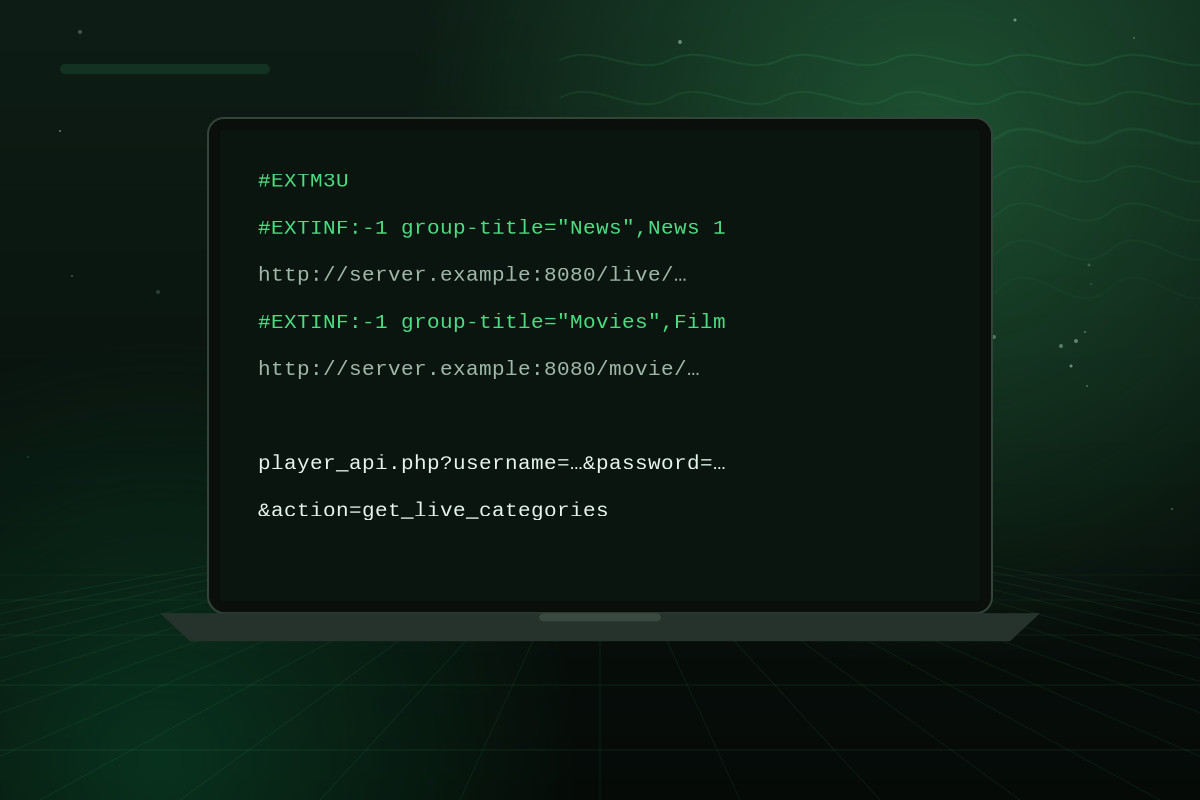
When your Stremzi login arrives, you may see two ways of adding it to a player: an M3U link or an Xtream Codes login. Both give you the same channels and the same library. The difference is in how the player receives that information, and that affects how easy setup is and how well the guide works.
What is an M3U link?
An M3U link is a web address that points to a playlist file. The file lists every channel and its stream address, line by line. You paste the whole link into your player and it reads the list. It is a long-established format that almost every player understands, which makes it a reliable fallback.
What is an Xtream Codes login?
Xtream Codes, often called "Xtream API", uses three details instead of one long link: a server address, a username and a password. The player connects to the server and asks for the channel list, the programme guide and the film and series library separately. That makes it more structured and usually faster to load.
Side by side
| Xtream Codes | M3U link | |
|---|---|---|
| What you enter | Server, username, password | One long web address |
| Programme guide | Usually loads automatically | Often needs a separate EPG link |
| Films and series | Sorted into a proper library | Sometimes mixed in with channels |
| Typing on a TV remote | Short and easy | Long and error-prone |
| Player support | Most modern IPTV players | Almost every player |
Which should you choose?
Use Xtream Codes whenever your player supports it. It is easier to type with a remote, the guide and library come in automatically and the layout is tidier. Use the M3U link if your player only accepts playlists, or for a general media player on a computer.
How to enter each one
Xtream Codes: in your player, choose "Add user", "Xtream Codes" or "Login with API". Type the server address exactly as sent, including http:// and any port number after a colon, then your username and password.
M3U: choose "Add playlist" or "M3U URL" and paste the full link. On a TV, many players let you add the link through their website instead, which saves typing. If the guide is empty, add the EPG link we send in the player's guide settings.
Common errors and fixes
- "Invalid login" or "authorisation failed": check for typos, extra spaces and the difference between capital and small letters. Passwords are case-sensitive.
- "Server not found": make sure the server address includes
http://and the correct port. - Channels load but no guide: refresh the EPG in the player settings, or add the guide link manually for M3U.
- List takes forever to load: the first load can take a minute. If it never finishes, restart the device and try again.
- Too many connections: another device is already playing on your plan. Stop it, or look at a multi-screen plan.
Keep your details private
Your login is personal. Do not post screenshots of it online or share it outside your household, as extra users can cause playback to stop on your own devices.
Need a hand?
Tell us which player you use and we will send the details in the format that suits it. Message us on WhatsApp, or follow the setup guide for your device.