Key points
- Fits most Samsung and LG TVs from the last few years
- No extra box needed when your TV has a good app
- Older TVs? A streaming stick is the simple answer
Own a recent Samsung or LG? You may be able to watch Stremzi without buying anything else. Both brands offer IPTV players in their app stores that can load your account directly. Setup differs slightly from a stick or box, because many TV players are configured on a website using a code shown on the screen. Both methods are covered below.
Is your TV suitable?
- Samsung: TVs running Tizen, which covers most models from roughly the last eight years. Look for the Apps tile on the home bar.
- LG: TVs running webOS. Open the LG Content Store from the home screen.
- Other brands: Sony, Philips, TCL, Hisense and others often use Google TV or Android TV. If yours does, follow our Android guide instead.
Update the TV's software first under the support or general settings menu. Older firmware is a common reason players will not install.
Find a player in the TV store
- Open the Samsung Apps section or the LG Content Store.
- Search for "IPTV" and look at the players listed, their ratings and how recently they were updated.
- Install the player we recommend in your WhatsApp chat, or one with good recent reviews.
- Open it once. Many TV players show a device ID, MAC address or activation code on the first screen. Write it down.
Add your login through the website
Typing a long address with a TV remote is tedious, so many TV players let you add your account on their website instead.
- On a phone or computer, go to the player's official website and find the upload or playlist page.
- Enter the device ID or code shown on the TV.
- Choose Xtream Codes if offered and type the server, username and password from WhatsApp, or paste your M3U link.
- Save, then restart the player on the TV. Your channels should appear after a short load.
Or enter it on the TV
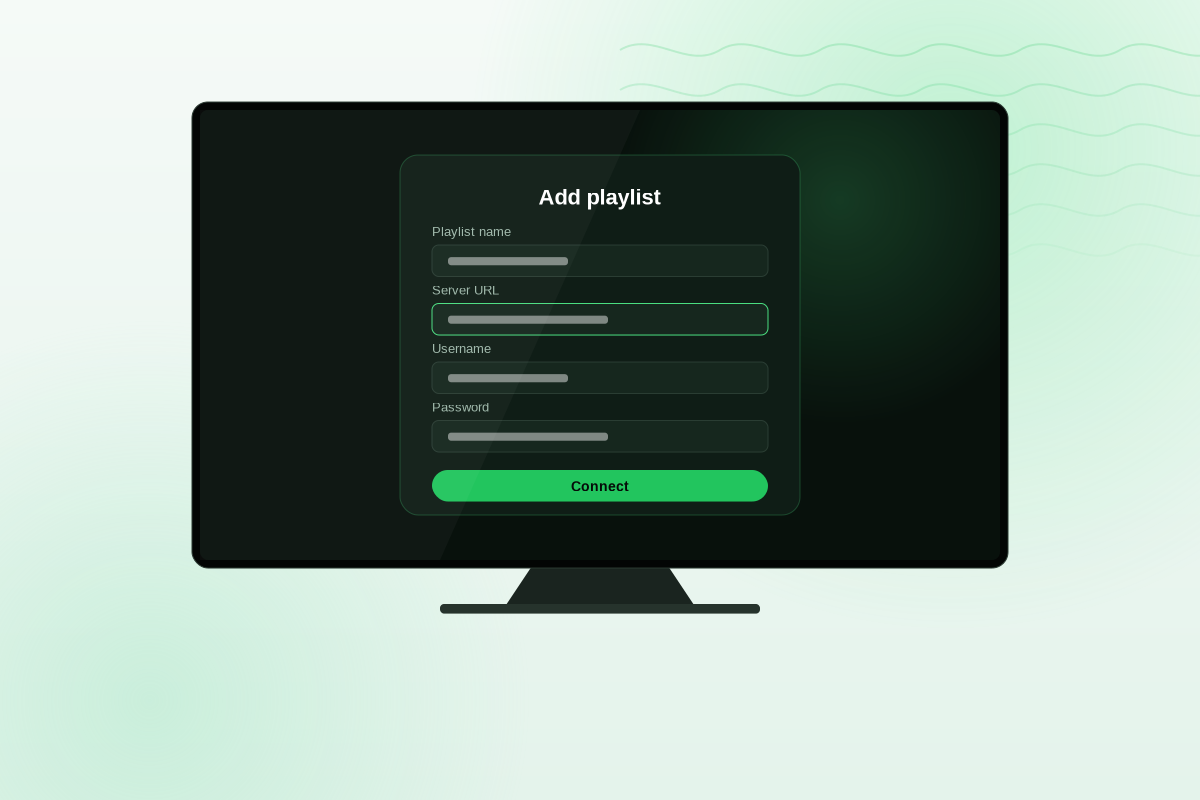
Some players have a login form directly on the TV. Choose Xtream Codes, enter the server address including http:// and any port number, then your username and password. Save and wait for the list to load.
Some TV players charge a small one-off activation fee after a free period. That fee goes to the app developer, not to Stremzi.
Getting a smooth picture
- Use a network cable to the TV if you can. Built-in TV Wi-Fi is often weaker than a stick's.
- Switch off any "motion smoothing" or heavy picture processing if sport looks unnatural.
- Set the TV's time zone correctly so the programme guide matches local time.
- Restart the TV fully now and then by unplugging it for a minute, rather than only using standby.
When a stick is the better choice
If your TV is older, short on memory or offers no decent player, a streaming stick is the easiest fix. A Fire TV Stick 4K or a Google TV streamer plugs into any HDMI port and gives you a much wider choice of apps. See the Fire TV guide.
Stuck at any step? Send us a WhatsApp message with your TV model and a photo of the screen.